Alert Bars & Pop-Up Modals
All Video Tutorials / Common Features / Alert Bars & Pop-Up Modals
Alert Bars & Pop-Up Modals
When you want to let your site visitors know about something that is time sensitive, alert bars and pop ups are the best way to do it. Let’s look at an example.
Sneaker Website Example
|
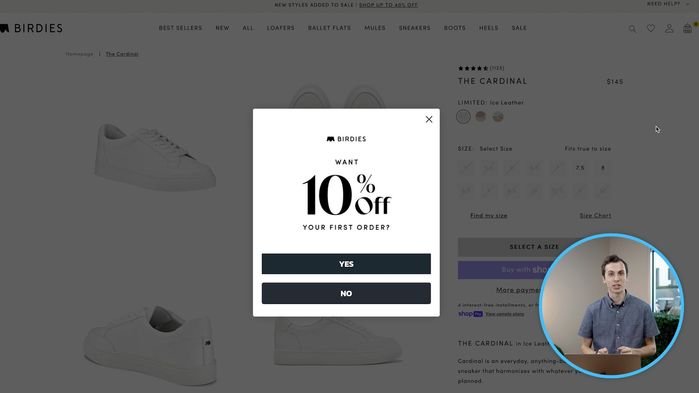
When I go to my favorite sneaker website, a pop-up appears right as the page loads, giving me this awesome promotional coupon, I’ll definitely use that one! And pop ups can be used for other things too like: to promote an email newsletter, to show new office hours, or to give out great deals like this one. |
|
|
|
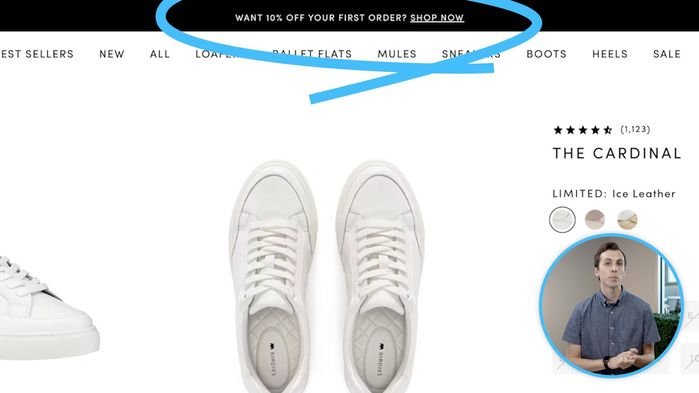
But let’s say you want to inform your visitors about something and you don’t want it to feel quite so attention grabbing. Well in that case, you can use an alert bar. Alert bars can show a lot of the same information, but in a more subtle way. Let’s see how we can add one of these to your site. |
How to Add One to Your Site
Adding an alert bar or pop up to your site is easy, let’s start by logging into Editor. Go to your website and then type “slash backend” and press enter... Let’s sign in. If you requested to have a pop up or alert bar on a specific page, navigate to that page. Otherwise, you will probably find the alert bars and pop ups in the “Edit Items Appearing On All Pages” section. Let’s open this up.
|
We’ll scroll down until we see something that says “Modal Pop Up” or “Announcements Banner”. Here it is! You’ll see that we have a variety of options for customization. You might have fewer… or more options than I do, but lets start by talking about the most common features you’ll find on a modal or pop up editor. |
|
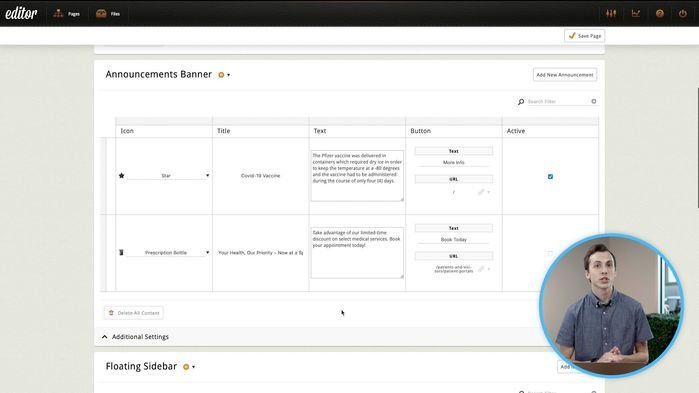
In all sites created in 2025, this section will now be labeled "Alert Bar" instead of "Announcements Banner".
Features of the Pop Up and Alert Bar
There are four features that both pop ups and alert bars will have in common:
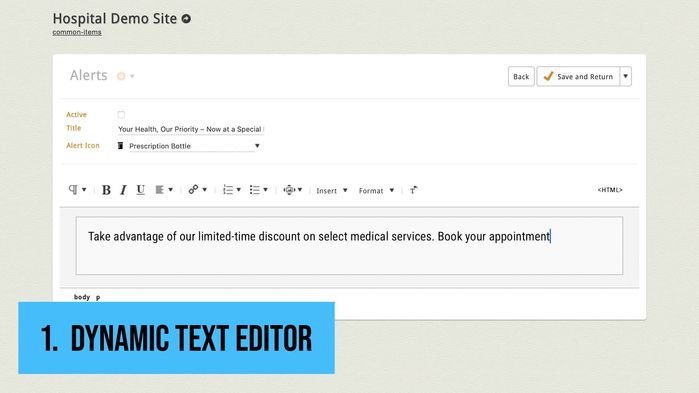
1. Dynamic Text EditorThe first is the Dynamic Text Editor. This is the same text editor that powers so many parts of your website. You can change the text color, add a button, or even embed an image. It works the exact… same… way... |
 |
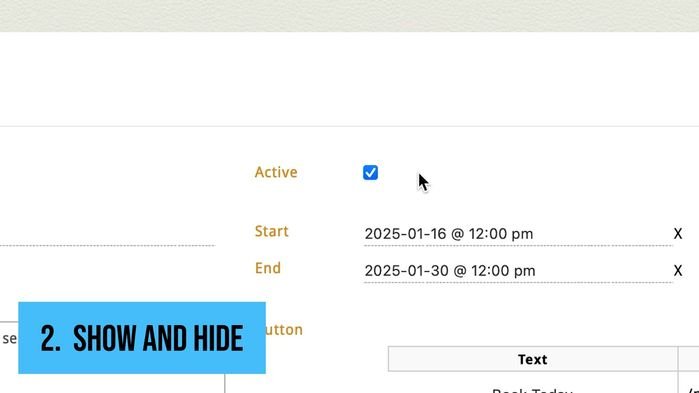 |
2. Show and HideThe second feature is “show and hide”. This lets YOU determine when your information is displayed… and when it’s not. Simply check the box on… to have visitors see your pop up or alert bar… and check off… to hide it. |
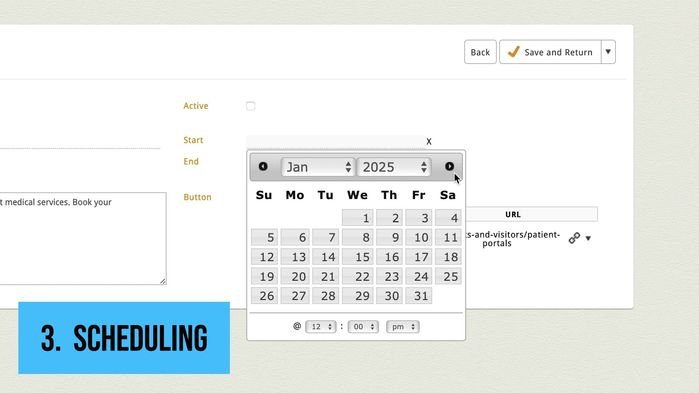
3. SchedulingThe third feature is “scheduling”. This takes away all of the pressure of trying to remember when to go back to Editor to turn everything on or off. Simple add the start and end date, and your information will show only… during those times. It’s THAT easy! |
 |
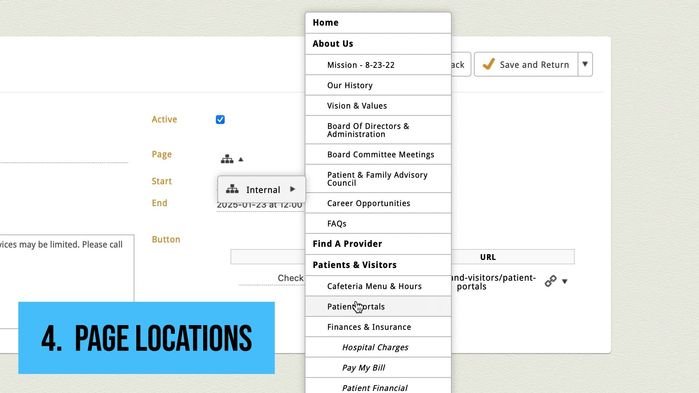 |
4. Page LocationsThe fourth feature is “page locations”. This allows you to only show your alert or pop up on specific pages: Like having an alert bar on a contact us page to let the visitor know that we will be closed during the holiday weekend. |
There are SOME features that are only found on Alert Bars. These include things like having an icon next to the announcement text, or positioning the Alert Bar at the bottom of the page instead. For Pop Up Modals, you could swap out the dynamic text editor for a full width embed image or video.
Creating An Example Pop Up
Now that we know the core features about Pop Ups and Alert Bars, lets actually add one to our site.
|
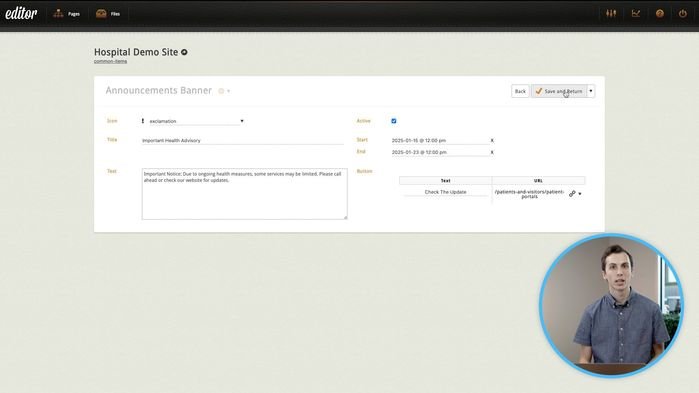
Let’s click the add new button in the top right of the block. Now we can type in the title of our banner, some body text, we can pick an icon, start date, end date, and a call to action button. Lets click save and return! Your pop up or alert bar should now be active on the site, depending on whether you checked active and the start date. |
|
Your alert bar or pop up might have different settings like I mentioned. If you have any questions or want to add some of the features to your alert bar or pop up that I have mentioned you can email client services or submit a support ticket. Both options will be listed below!
I hope this video helped, until next time.